Appearance
White Label overview
Use our White label solution to adapt the Dinape platform to your brand. White label settings can control the logo, favicon, primary color, login experience, platform UI, and user emails.
White label configuration helps users see the platform in the visual identity of the client or entity they are working with.
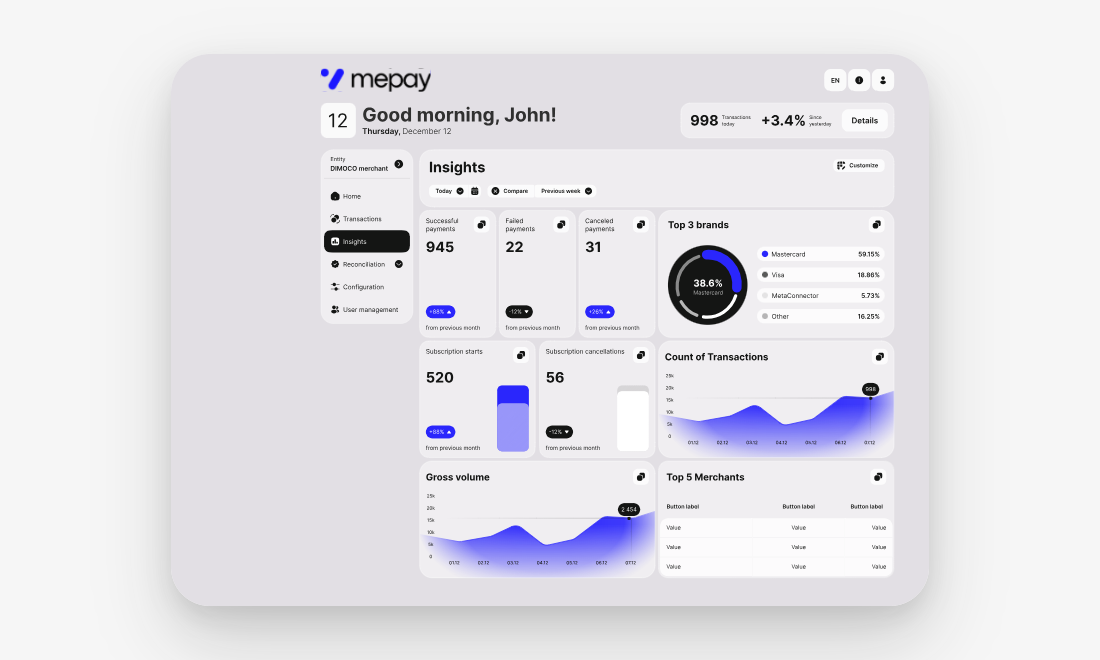
What can be branded
Dinape can apply branding to several parts of the platform:
- Login screen
- Platform UI
- Browser favicon
- User emails
- Dedicated login or portal URL, where configured by Dinape
Branding can include the client logo, favicon, primary color, company name, address details, and email sender information.
Some branding settings can be configured directly in Dinape. Other settings, such as dedicated URLs or email sender configuration, require support from the Dinape team.
Configure platform branding
You can configure the main visual branding directly in the Configuration tab.
Use the Branding section to add:
- Logo URL
- Favicon URL
- Primary color
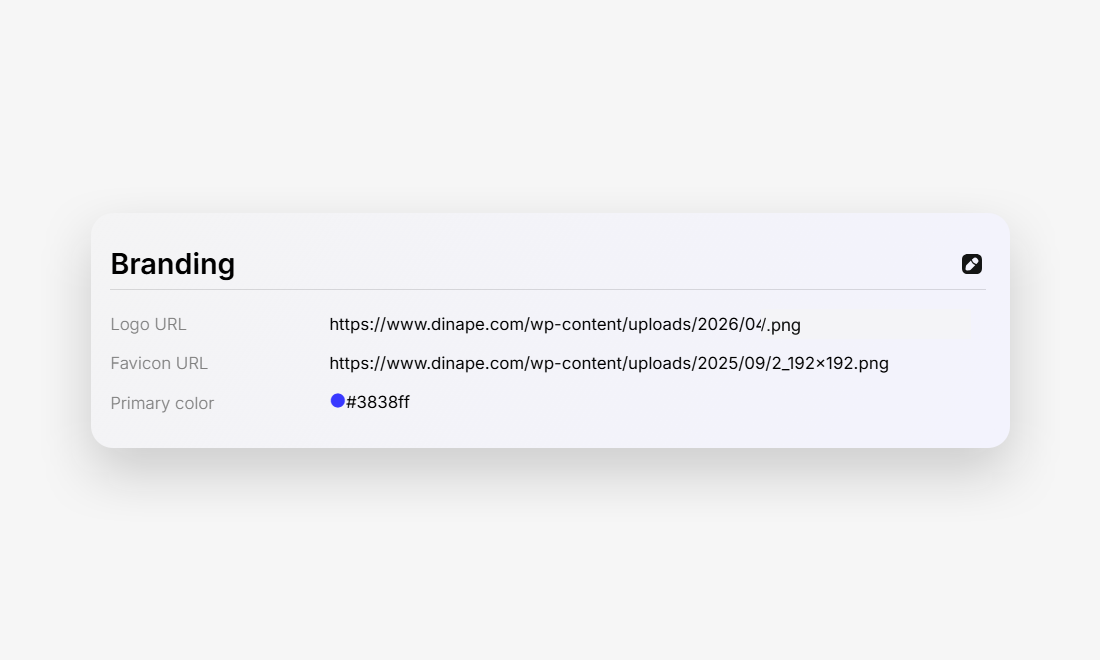
The primary color is used across key interface elements. Dinape can also generate background styling based on the configured primary color.
INFO
If the selected primary color does not meet accessibility requirements, Dinape may suggest an alternative color to keep text and interface elements readable.
For dedicated login URLs, portal URLs, email sender configuration, or other advanced white label settings, contact the Dinape team.
Understand dynamic branding
Dinape applies branding based on the entity structure.
For the platform UI, Dinape uses the most specific branding available for the user’s current context. Branding can follow the account structure from Merchant to Division to Client.
For example:
- If the selected merchant defines a logo, that logo is shown.
- If the selected merchant does not define a logo, Dinape uses the next available branding configuration.
- If no custom logo is available, the Dinape logo is shown.
- If the selected entity does not define a primary color, Dinape checks the next level in the structure until a color is found.
Login pages and user emails are branded at client level.
Brand the login experience
The login screen can use the branding configured for the client, including:
- client logo
- client favicon
- client primary color
- dedicated login URL, where configured
- support contact information, where configured
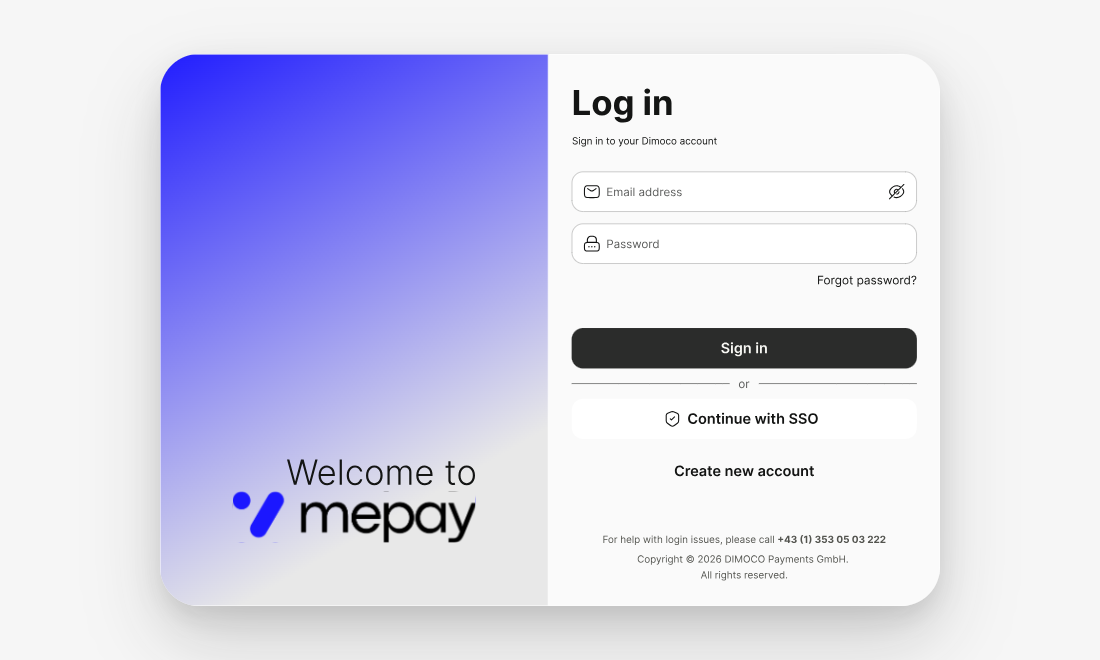
Logo and favicon values configured in Dinape can also affect the login screen. Dedicated login URLs and advanced login setup are configured by the Dinape team.
Brand user emails
User emails can include client-level branding, such as:
- client logo
- client name
- client address
- email footer
- sender details
This helps ensure that system-generated emails match the brand shown in the platform.
INFO
For email branding, use image formats that are broadly supported by email clients. PNG is recommended for logo assets because SVG may not render correctly in older Outlook versions.
Prepare brand assets
Before setting up white label branding, prepare the required brand assets and information.
You may need:
- logo URL
- favicon URL
- primary color as HEX code
- preferred URLs for portal, documentation, API, or SSO
- company name for emails
- address for the email footer
- sender email details for customer communication
- email server details, where required
Recommended asset formats:
| Asset | Recommendation |
|---|---|
| Logo | PNG for broad compatibility; SVG only where supported |
| Favicon | PNG or ICO |
| Primary color | HEX code, for example #223EAD |
Next steps
Configure account branding
Use the Configuration tab to add logo, favicon, and primary color values.
Review account structure
Use Account structure to understand how branding can follow merchant, division, and client levels.