Appearance
Connectors Overview
Use Connectors to connect payment providers to a channel. Connectors are managed on the channel Configuration tab under Affiliated connector.
A connector links a channel to a payment provider, such as Adyen, PayPal, or Worldline OBS. The connector determines which provider is used for payment processing and whether the connection runs in test mode or live mode.
Open connectors
Select the channel you want to configure, then open the Configuration tab.
In Affiliated connector, you can view the payment providers connected to the selected channel.
The table shows:
- Name
- Connector mode
- Description
Add a connector
Use the plus icon in Affiliated connector to add a new connector.
The connector setup has two steps:
- Connector: select the payment provider and add a description where needed.
- Credentials: provide the credentials required to access the payment provider.
After the connector is created, it appears in the Affiliated connector table for the selected channel.
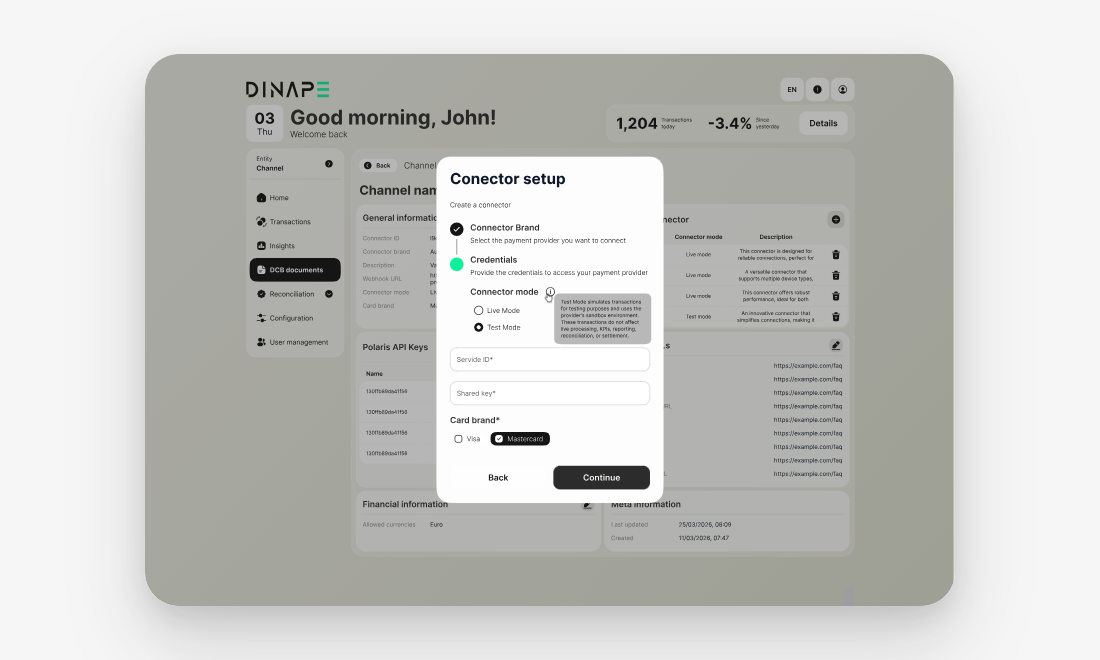
Choose connector mode
When adding a connector, select the connector mode.
Available modes include:
- Live mode: used for live payment processing
- Test mode: used for testing purposes only
INFO
Test mode is where transactions and outcomes are simulated by the gateway or connector. These transactions are for testing purposes only and do not affect live processing, KPIs, reporting, reconciliation, or settlement.
Add provider credentials
In the Credentials step, enter the provider credentials required for the selected connector.
The required fields depend on the payment provider. For example, a connector can require a Platform merchant ID or other provider-specific credentials.
Configure instant payments
For supported connectors, you can enable Instant payments only.
INFO
Enable this option to allow only SEPA instant payments. If disabled, both SEPA regular and instant payments are supported.
The availability of this option depends on the selected payment provider and payment method.
Configure connector fees
Some connectors support connector fees.
Use Fees on the affiliated connector row to open the connector fee configuration. From there, you can create fee groups and define fee rules for that connector.
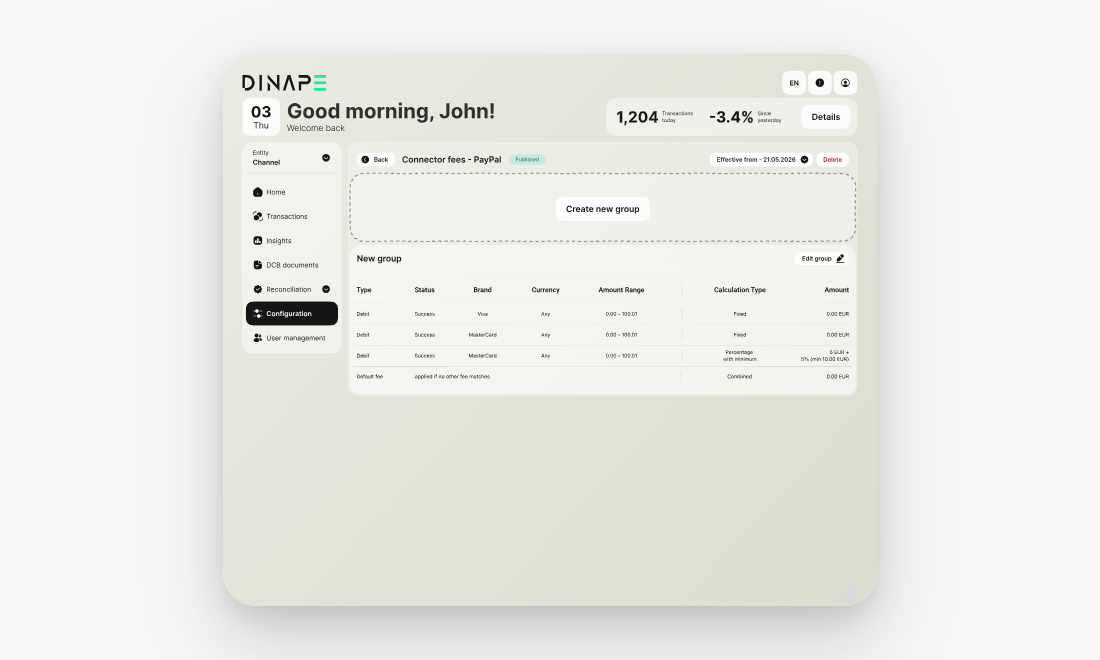
For more information, see Fee Management.
Delete a connector
Use the delete action on the connector row to remove a connector.
Deleting a connector disables new payments through it. Previous transactions remain accessible in Transactions.
WARNING
After a connector is deleted, refunds may no longer be possible for transactions processed through that connector. Any fee configuration associated with the connector is also deactivated and no longer applied to future transactions.
Use test mode
When creating a connector, select Test mode to test the connector before using it for live payment processing.
In test mode, transactions and outcomes are simulated by the gateway or connector. These transactions are for testing purposes only and do not affect live processing, KPIs, reporting, reconciliation, or settlement.
Use test mode to check connector credentials, payment method availability, checkout behavior, redirects, callback handling, and transaction creation in Transactions.
Before processing live payments, configure the connector in Live mode with production credentials.
Next steps
Configure PayPal
Connect and configure PayPal for a channel.
Configure Adyen
Connect and configure Adyen for a channel.
Configure Worldline OBS
Connect and configure Worldline OBS for a channel.