Appearance
Transaction Overview
Use Transaction Overview to review payments and payment actions for the currently selected entity. The page shows transactions in a table so you can search, filter, export, and open individual transactions for more detail.
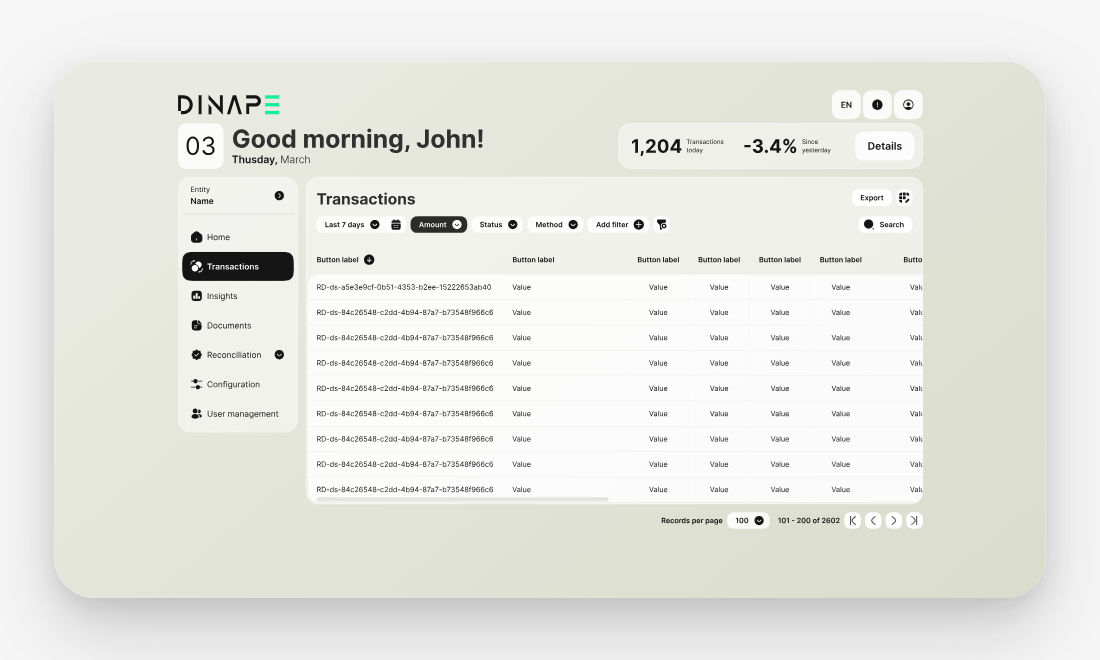
The selected entity defines which transactions are shown. For example, if you select a client, the table can include transactions across the entities below it. If you select a channel, the table focuses on transactions for that channel.
Find transactions
Use the transaction table to find and review payment activity.
You can:
- select a date range
- search for a transaction
- add filters
- sort table columns
- export transaction data
- open transaction details
The available transactions depend on the selected entity and your access rights.
Filter the table
Use filters to narrow the transaction list.
You can filter by the fields available in the table, such as amount, status, method, or other transaction attributes. Use the date range filter to focus on a specific period.
Customize table columns
Use Table settings to choose which columns appear in the transaction table.
You can:
- show or hide columns
- reorder columns
- include or exclude test mode transactions
The available columns include:
- Mandate ID
- Customer ID
- Amount
- Currency
- Type
- External Merchant ID
- External Channel ID
- Status
- Method
- Brand
- Instant payment
- Date
- Mandate operation
- Customer email
- Merchant transaction ID
- Channel ID
- Channel
- Connector
- Connector customer ID
- Customer name
- Merchant name
- Division name
- MSISDN
- Subscription ID
Open transaction details
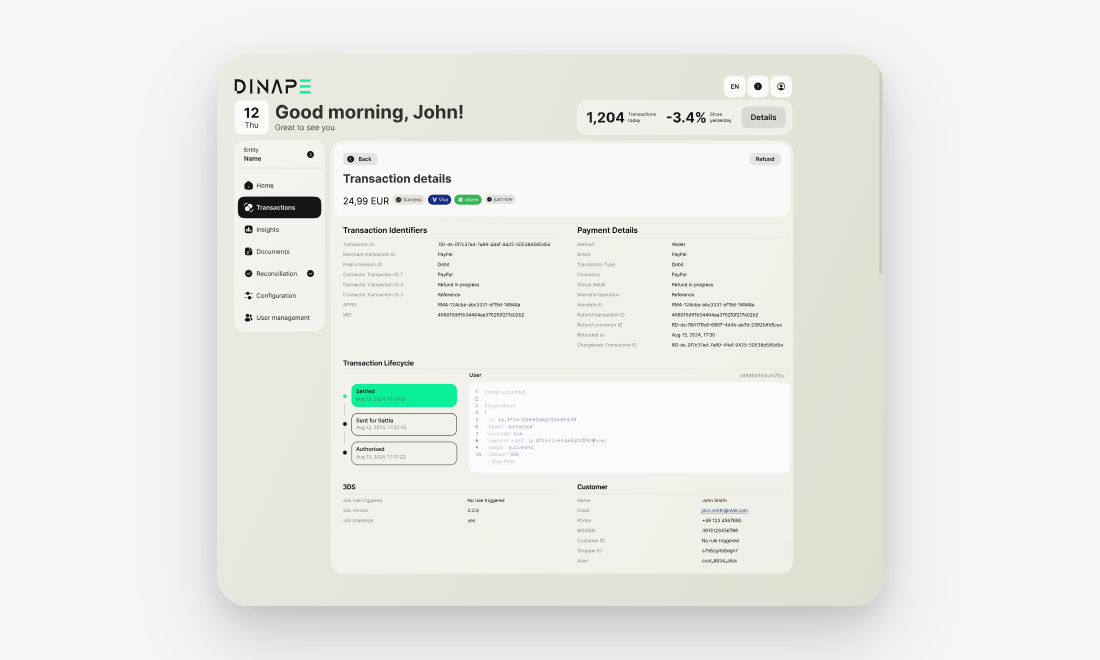
Open a transaction to review more information about the payment.
The transaction details page shows the full context of a transaction, including transaction identifiers, payment details, customer information, and the transaction lifecycle.
The lifecycle helps you understand how the transaction was processed, from the initial request through redirects, callbacks, provider updates, and the final status.
Export transactions
Use Export to download transaction data from the current table view.
Apply the date range, filters, and table settings you need before exporting the data.
Next steps
Understand debit
Use Debit to learn how customer payments are charged and recorded in Dinape.
Refund a payment
Use Refund to understand how to return funds for eligible transactions.
Review reconciliation data
Use reconciliation pages to compare transaction data with provider data and calculation jobs.