Appearance
Calculation Jobs
Use Calculation Jobs to review reconciliation and fee calculation runs. Calculation jobs show when a calculation was executed, which period it covered, whether it was triggered manually or automatically, and whether it completed successfully.
INFO
Calculation Jobs are only available at Client level. Select a client entity to view calculation jobs.
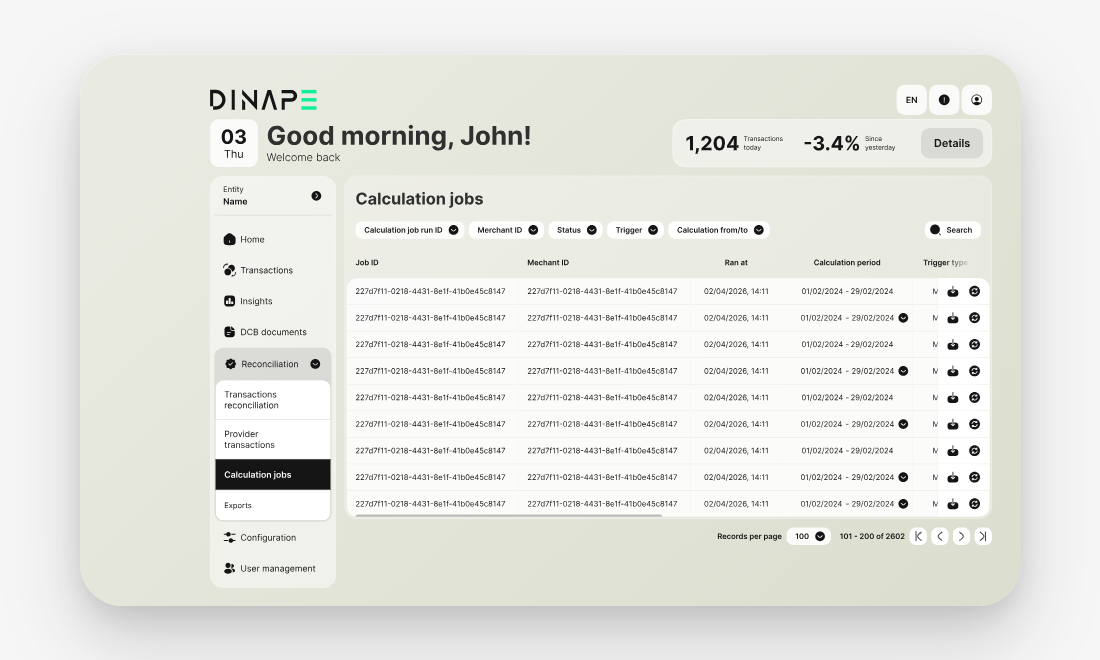
Calculation jobs calculate fee and settlement-related results and make the result available as a downloadable file. They help finance and operations teams review calculation periods and provide data for downstream finance or invoicing processes.
Review calculation jobs
Open Reconciliation and select Calculation jobs.
The table shows calculation runs for the selected client entity.
The table can include:
- Job ID
- Merchant ID
- Ran at
- Calculation period
- Trigger type
- Status
- Skipped transactions
Understand trigger types
A calculation job can be triggered in different ways.
Common trigger types include:
- Automatic: the job was started by a scheduled process
- Manual: the job was started by a user
Use the trigger type to understand whether a calculation was part of a regular run or started as a follow-up action.
Review job status
Use the job status to check the current state of the calculation.
Common statuses include:
- In Progress: the job is currently running
- Success: the job completed successfully
- Failed: the job did not complete successfully
If a job failed, review the calculation period, skipped transactions, and available job actions to decide whether the job should be retriggered.
Review skipped transactions
Use Skipped transactions to see whether any transactions were excluded from the calculation run.
Skipped transactions can indicate that some records could not be processed as part of the job. Review these records before relying on the calculation result for operational or finance workflows.
Retrigger a job
Use Retrigger to run a calculation job again for the same calculation period.
After the job is retriggered, Dinape creates a new job run and updates the job table with the latest result.
INFO
Retriggering a job can take some time. Review the updated job status after the run is complete.
Download job output
Where available, use the download action to retrieve the output connected to a calculation job.
Use downloaded job output for analysis, validation, or follow-up investigation outside the portal.
Next steps
Review reconciliation data
Use Reconciliation Data to inspect matched and unmatched transaction records.
Continue to Reconciliation Data
Export reconciliation results
Use Exports to download completed reconciliation exports.